Are you looking to setup your own UPS server for notifications and monitoring or shutdown / starting other servers then this simple tutorial is for you.
Installation of required softwares
Nginx web server apt install nginxCopy
PHP apt install php-fpm php-sqlite3Copy
Wakeonlan apt install wakeonlanCopy
APCUPSD apt install apcupsdCopy
Customization of files
Extract and upload all the files from the zip file in their appropriate directories and chmod all the bash (.sh) files to 755. Where ever you see # Your additional notification API goes here replace that line with your own call for other notifications like sending an email, just add your desired text message. Uncomment all curl entries for log entries to your notification server.
Replace rpi.example.com to the hostname or IP address of your UPS server
Replace proxmox.example.com to the hostname or IP address of your proxmox server, if you have one
Replace D1:AE:52:C9:D3:C2 to the MAC address of your server for Wake On LAN
Adding a new Proxmox user to shutdown the server: Go to Datacenter > Groups > Create > Shutdown. Then go to Users > Add > Username: shutdown, Realm: Proxmox VE authentication server, add other details, Group > shutdown. Go to Roles > Create > Name: shutdown > Privileges Sys.PowerMgmt. Now go to Permissions link > Add > Path /, Group Shutdown, Role Shutdown then Add. Go to API Tokens > Add > User Shutdown > Privilige Separation = Uncheck, Copy token ID and Secret. Now edit the file /root/onbattery-proxmox.sh and change the token values on line 13 and change the node name in the url https://proxmox.example.com:8006/api2/json/nodes/<yournodenamehere>/status
To change the delay of shutting down the Proxmox or other servers when the power is lost change the sleep value of "sleep 60" in /root/onbattery-proxmox.sh, When the onbattery event is triggered the scripts wait for 60 seconds before calling the shutdown API and shutting down the Proxmox server.
Editing of bash script /root/proxmox-up-check.sh : TARGET=proxmox.example.com Hostname or IP address of Proxmox server, sleep 15m 15 minutes (to make sure the electricity is back for good) before sending the WOL packet (Change the MAC address D1:AE:52:C9:D3:C2 to your Proxmox server) to the Proxmox server and when the battery charge is at least 25% and UPS is online [ "$batterystatus" -ge 25 ] && [ $upsstatus == "ONLINE" ] then start the Proxmox server
Finally a Cron schedule to periodically check for Proxmox up or not (every hour), change it to what ever you want 0 * * * * /bin/bash /root/proxmox-up-check.sh > /dev/null 2>&1Copy
Executing different tasks at different battery levels
To execute scripts or commands at different battery levels (75%, 50% and 5%) add your commands or different API calls in /root/battery-notification.sh
Screenshot
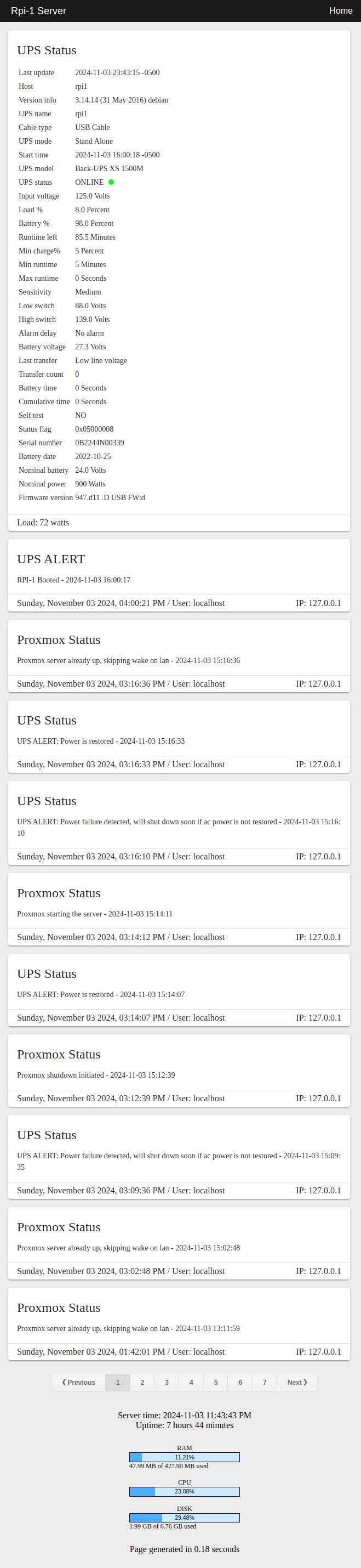
Let me know if you have any comments or if there is any error in this guide.
## Disclaimer
The software provided in this repository is for educational and informational purposes only. Under no circumstances shall the author or contributors be liable for any direct, indirect, incidental, special, exemplary, or consequential damages arising out of the use or inability to use this software. The author will not be liable for any special, incidental, consequential or indirect damages due to loss of data or any other reason.